
Accomplishments
- Added Control Panel to the VR mode.
- VR Related Bugfixes
- Progress bars visual update
The virtual tours I create are intended to be accessible across three device categories: traditional computers, touchscreen mobile devices, and virtual reality (VR) headsets. Recently, research and development has focused on 2D features accessible to the first two categories. This week, I shifted my focus to the VR user experience (UX). Through this effort, I identified and resolved bugs, improved feature parity by providing a menu in VR, and implemented shared features that also enhance the 2D experience.
VR Bugfixes
In the overview, I describe three categories of devices relevant for testing their unique user experiences. This neglects to mention how VR devices effectively function as two categories. VR devices often offer a traditional 2D web browsing experience, as well as an immersive 360 experience that places you inside the webpage.
In this 2D experience, two issues were immediately apparent. The control center buttons were not visible, and there was no option to enter VR. These hurdles needed to be resolved. After investigating, I found both stemmed from the same source: a neglected feature from the template where VR devices display a prompt encompassing the screen, immediately offering the user the option to enter VR. At some point, the necessary calls to load and handle this screen were removed, and the action to hide the control center was built for a previous, much shorter version. I restored the prompt and adjusted the control panel animations so everything would display properly. Now the viewer can again begin on a 2D screen and choose to enter VR.
VR Menu
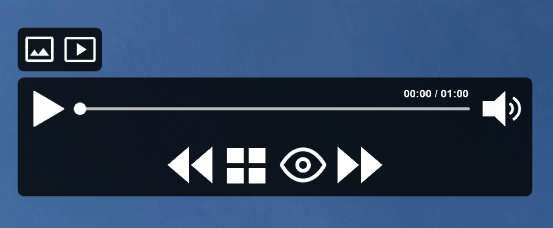

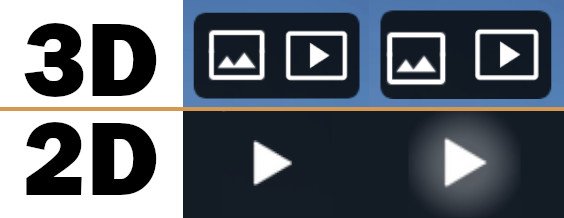
A viewer can enter a virtual experience, but how can they control it? In some 3D tours there are hotspots, or markers, placed on the ground or throughout the space that can be clicked. These take the viewer to the next photo. But how would you control a video or an unrelated gallery? How would you hide hotspots to remove distractions and better immerse yourself in the scene?
One option would be to map these actions to buttons on a controller. However, this could increase the learning curve and decrease engagement. Viewers would need to learn that “B” means hide icons, “A” means play, “X” means pause, and so on. Volume and video scrubbing would become even more complicated. Maintenance would also increase, since controllers vary across devices, and some devices have no controllers at all. Instead, we can provide a menu in VR. This emulates a 2D experience for controlling video, altering the scene, and iterating through gallery photos.
Initially, I hoped to reuse the logic and design of the 2D menu within virtual reality. This cannot currently be done in modern web browsers. The 2D menu is built into the document object model (DOM). The DOM works well on 2D displays, but its structure does not translate into three-dimensional space. Since VR headsets are essentially two 2D screens positioned directly in front of your eyes, it might seem possible to place the menu directly on those screens. However, with screens only centimeters from your eyes, this would likely feel like a sign hanging from both eyelashes. The lack of depth would be disorienting and uncomfortable. A new solution was required.
You may recall the previously mentioned hotspots—2D images positioned in 3D space that perform actions when clicked. These are already familiar to users and are often the primary method of interaction within 3D environments. Using this approach, we can rebuild the user interface with necessary adjustments to meet the expectations and limitations of 3D space.
In 2D DOM menus, we have convenient grouping tools called containers. These allow items to be spaced evenly horizontally or vertically. Containers provide alignment controls, and spacing is defined locally within them. This means moving one container moves everything inside it. This convenience does not exist in 3D with hotspots. Each item must be individually placed relative to where the viewer is looking. This makes maintenance and future changes more complex. If you initially place a toolbar at the bottom and later move it to the top, every toolbar item must be updated individually. I was grateful to have waited until the 2D menu matured before building the 3D menu. Since the 2D design has been tested, the likelihood of major changes to the 3D version is reduced.
During early testing of the 3D menu, I noticed that when scenes changed, the menu immediately disappeared. Opinions on this behavior may vary, which suggests that changing a scene does not inherently imply the menu should hide. These actions can be logically separate and therefore should be. A viewer may prefer to keep the menu positioned to their right while iterating through scenes or preparing to start a video. After brief investigation, I found a way to keep the menu visible and in its relative position while moving through scenes in both galleries and 3D tours.
Another difference unique to the 3D menu is button indicators. In 2D, a highlight indicates when a button is hovered. In 3D, I initially struggled to replicate this behavior. After stepping away briefly, I considered alternative approaches. Instead of mimicking a flat highlight, I leveraged 3D space to animate movement similar to physical buttons. This animation feels responsive and clearly conveys interaction, so I chose to adopt it.
Working in 3D comes both with challenges and benefits. One key benefit is the consistency of the viewer’s perspective. In 2D we have to account for devices of so many shapes, sizes, and resolutions. One menu must look good on a standard desktop monitor as well as ultra-wide screens, tall cell phones, older phones at 1080p, and newer screens beyond 4K. I put forth effort to craft one design that hopes to satisfy all viewport configurations, even ones as strange as the (fictional) Pear Phone.
In VR, this challenge is reduced. Most human heads and eyes share similar proportions. VR devices may render at different resolutions, but this affects clarity rather than perceived size in 3D space. Through this interface, we can use fixed values for width, height, distance, and other design requirements while still delivering a consistent experience across VR viewers.
The VR menu system may appear identical to the 2D menu, but internally they are entirely different. The tools and display logic differ significantly. What overlaps are the shared functions that update scenes and the data that determines state. This process took more time than anticipated, but the result feels worthwhile in providing a meaningful VR experience.
VR Menu
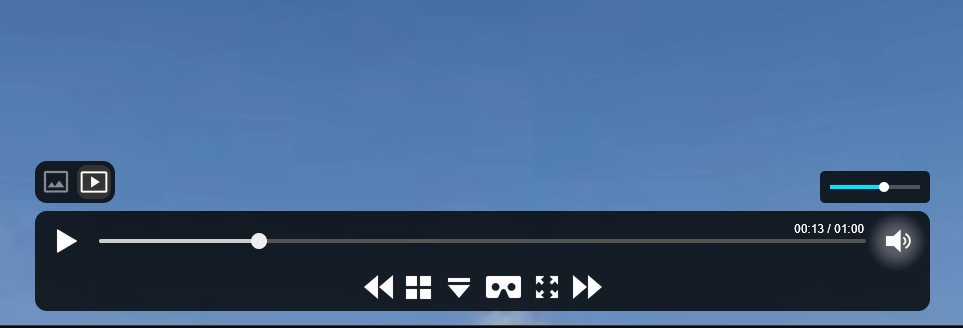
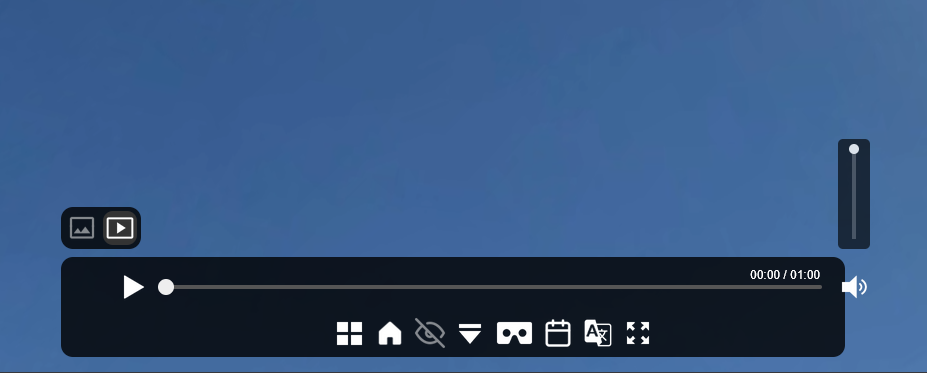
While implementing the 3D menu, I identified opportunities to improve the 2D menu as well.
While updating the state of features such as the progress bar, I discovered a bug where the control panel background moved in relation to the volume slider. This behavior was unexpected and undesirable. I began decoupling any logic that triggered background movement based on volume adjustments.
I also implemented a progress bar for both the seek and volume sliders. These now update immediately, even while dragging the handle. This improves user feedback and makes it easier to identify current progress or volume level.
A minor redesign was made to the volume slider panel. Previously vertical to differentiate it from the seek bar, this orientation limited space for additional panels and reduced symmetry. I converted it to a horizontal design so future panels or popups can be added without overlapping control elements and to better utilize available screen space.
Summary
Even though the reality may be virtual, its effects are real. Our senses are heightened and more deeply engaged when immersed in VR devices. This enhances immersion—and makes disruptions more noticeable when things go wrong. A new menu has been added to allow viewers to continue controlling and interacting with virtual tours in VR. Bugs have been resolved to make access smoother, and designs have been updated to support easier implementation of new controls while improving visual clarity and usability.